My Servers
View and manage your configured MCP servers and available tools.
My Servers displays all MCP servers you've configured and connected. Here you can see server status, available tools, and manage configurations.
Navigate to My Servers
- Open the sidebar menu
- Click Gateway to expand
- Select My Servers
Server List
The page shows your configured MCP servers as expandable cards:
Server Card
| Element | Description |
|---|---|
| Name | Server name (e.g., "Gsuite", "Hubspot") |
| Status | CONFIGURED, PENDING, or ERROR |
| Tool Count | Number of available tools (e.g., "23 tools") |
| Description | Server description |
| Categories | Tags and categories |
| Transport Types | STDIO, SSE, STREAM, WS |
Example Server
┌─────────────────────────────────────────┐
│ Gsuite                    CONFIGURED    │
│ 23 tools                                │
│ Gsuite MCP Server                       │
│ Categories: gsuite google               │
│ STDIO  SSE  STREAM  WS                  │
└─────────────────────────────────────────┘
Viewing Server Details
Click on a server row to expand and see:
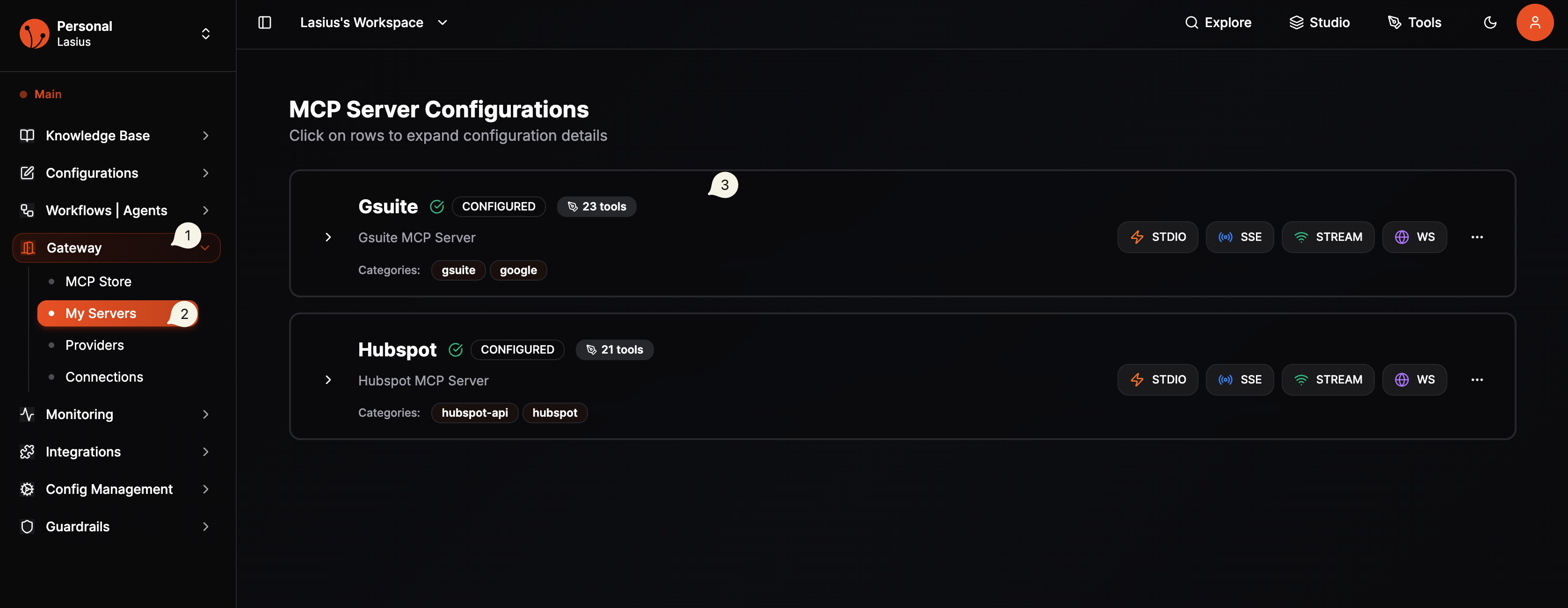 Fig : Configured MCP Gateway Servers
Available Tools
Each tool exposed by the MCP server is listed:
| Tool Property | Description |
|---|---|
| Name | Tool identifier |
| Description | What the tool does |
| Parameters | Input parameters required |
Example: Gsuite Tools
| Tool | Description |
|---|---|
gmail_send | Send an email via Gmail |
gmail_search | Search emails |
drive_list | List files in Google Drive |
sheets_read | Read data from Google Sheets |
calendar_create | Create calendar events |
| ... and 18 more |
Example: Hubspot Tools
| Tool | Description |
|---|---|
contacts_list | List CRM contacts |
contacts_create | Create new contact |
deals_list | List sales deals |
deals_update | Update deal status |
companies_search | Search companies |
| ... and 16 more |
Server Statuses
| Status | Meaning |
|---|---|
| CONFIGURED | Server ready to use |
| PENDING | Configuration in progress |
| ERROR | Connection or auth issue |
Managing Servers
Edit Configuration
- Click the edit button on a server card
- Update connection settings
- Save changes
Remove Server
- Click the delete button on a server card
- Confirm removal
- Server is disconnected
Note:
Removing a server will disconnect it from all workflows using it. Workflows will fail if they try to call tools from a removed server.
Using Servers in Workflows
Once a server appears here with status CONFIGURED, you can use it in workflows:
- Open your workflow in the Flow Editor
- Select an Agent node
- In the Tools section, find Gateway MCP Client
- Add it to the agent's available tools, from the dropdown choose the servers from Gateway Client MCP and connect it to agent tools.
- The agent can now call any tool from the server
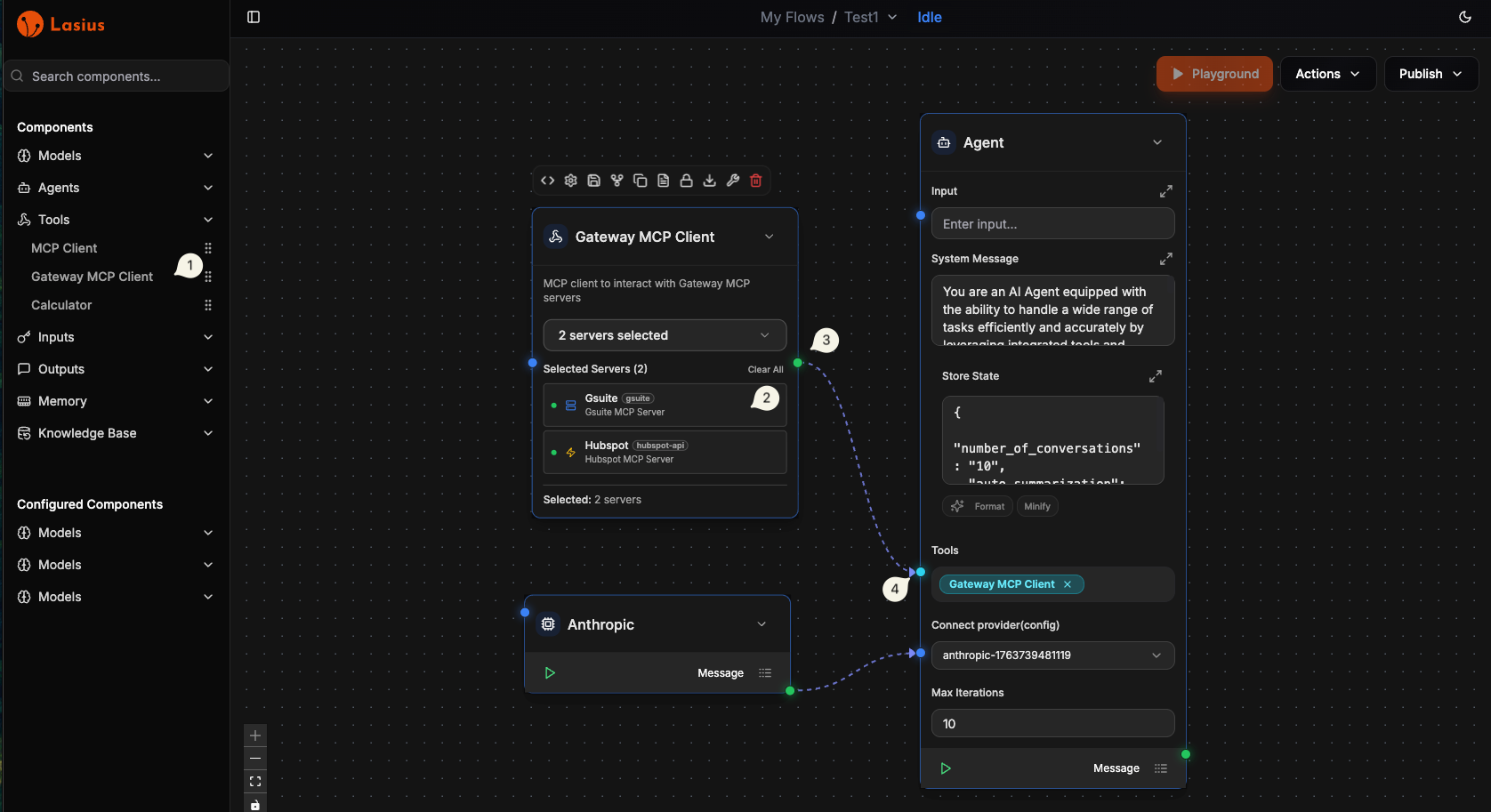 Fig : MCP Gateway Servers In Workflows
Transport Types
| Type | Badge | Description |
|---|---|---|
| STDIO | STDIO | Standard input/output |
| SSE | SSE | Server-Sent Events |
| STREAM | STREAM | Streaming responses |
| WS | WS | WebSocket |
Servers may support multiple transport types. Lasius automatically selects the best option.
Troubleshooting
| Issue | Solution |
|---|---|
| Server shows ERROR | Check Connections for auth issues |
| Tools not loading | Wait for discovery or refresh |
| Server not appearing | Verify connection in MCP Store |
| Tools not working | Check server logs in Monitoring |
Back to: MCP Gateway Overview