MCP Store
Browse and connect to pre-built MCP servers from the marketplace.
The MCP Store is a marketplace of pre-built MCP servers you can connect to your workflows. Browse available integrations, filter by category, and connect with one click.
Navigate to MCP Store
- Open the sidebar menu
- Click Gateway to expand
- Select MCP Store
Store Features
Search & Filter
- Search: Find servers by name or description
- Categories: Filter by type (fetch, gsuite, hubspot, etc.)
- Provider Types: Filter by auth requirement
- Tags: Filter by functionality tags
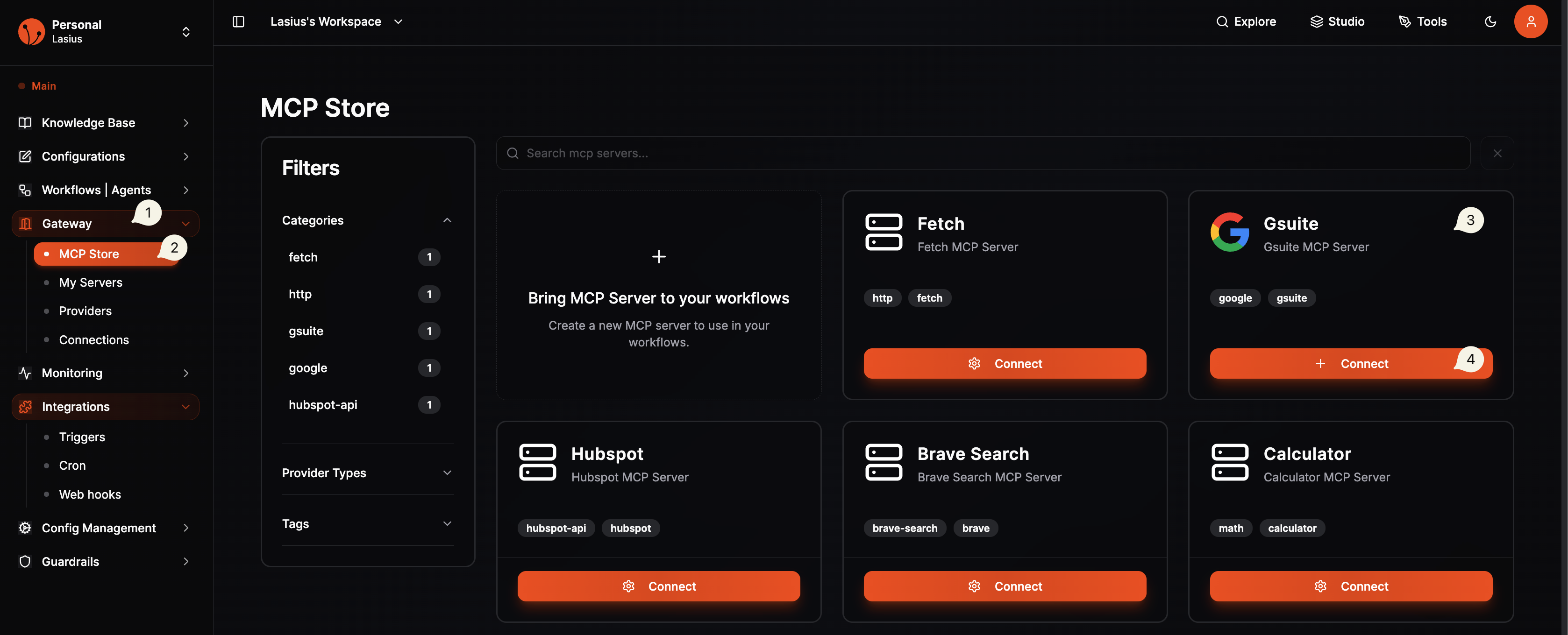 Fig : MCP Store
Available Servers
| Server | Category | Description |
|---|---|---|
| Fetch | http, fetch | Make HTTP requests to any URL |
| Gsuite | google, gsuite | Google Workspace integration (Drive, Sheets, Gmail, etc.) |
| Hubspot | hubspot-api | CRM, contacts, deals, marketing automation |
| Brave Search | brave-search | Web search capabilities |
| Calculator | math | Mathematical calculations |
| Sequential Thinking | thinking | Step-by-step reasoning tools |
Connect an MCP Server
Step 1: Find the Server
- Browse or search for the server you need
- Review the description and available tools
Step 2: Click Connect
- Click the Connect button on the server card
- A configuration dialog will appear
Step 3: Select Profile
- Choose an existing profile from your configured providers
- Or create a new provider configuration first
Note:
You must configure a provider with the correct auth type before connecting. For example, Hubspot requires an API Key provider, Gsuite requires Google OAuth2.
Step 4: Configure Connection
| Field | Description |
|---|---|
| Profile | Auth profile to use |
| Name | Display name for this connection |
| Transport | Connection type (STDIO, SSE, WS, HTTP) |
Step 5: Save & Test
- Click Save to create the connection
- The server will appear in My Servers
- Tools are automatically discovered and listed
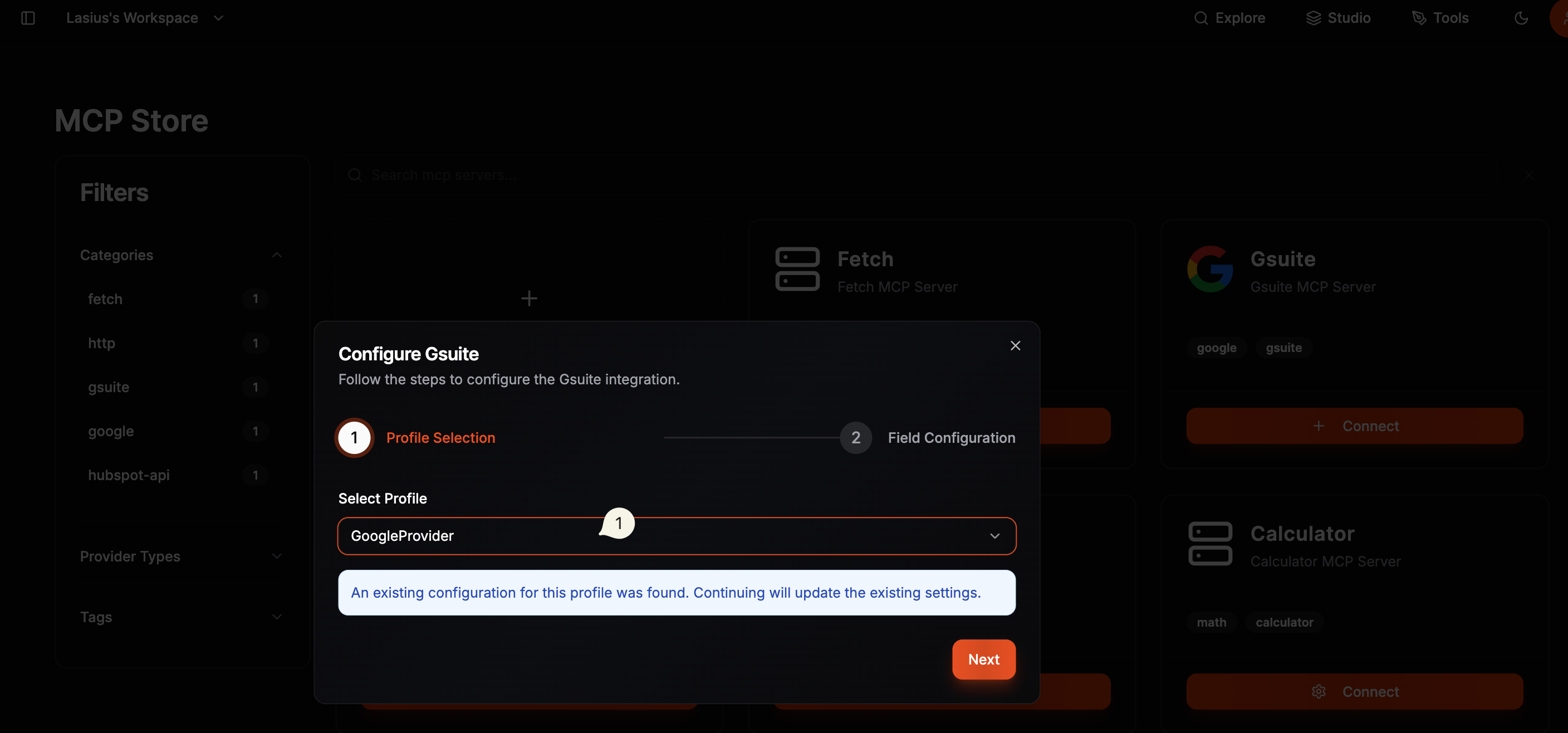 Fig : MCP Store Choose Profile
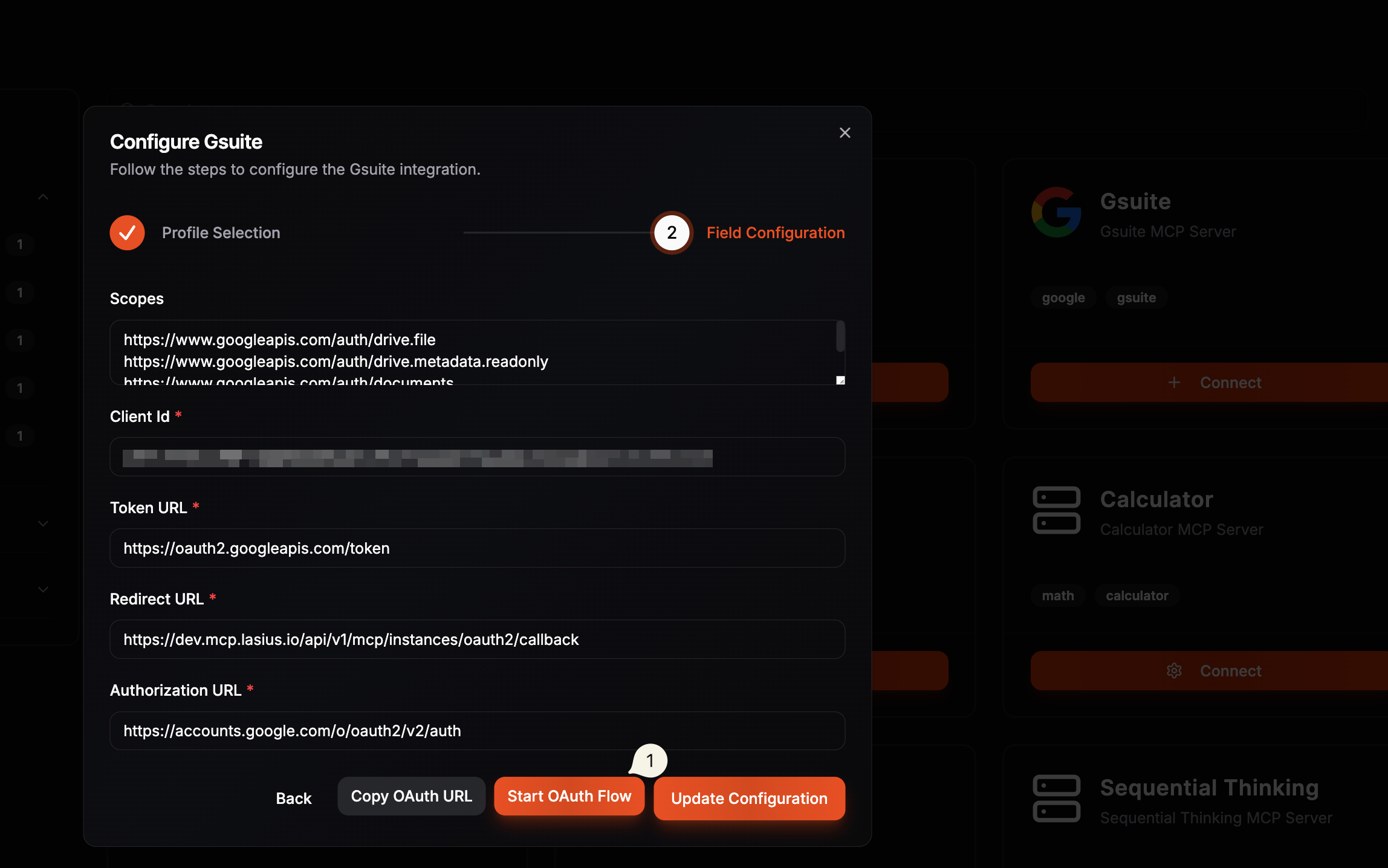 Fig : MCP Store Start OAuth2 Flow
Bring Your Own MCP Server
Don't see the MCP server you need? Onboard your own custom server using the 5-step wizard.
- Click Bring MCP Server to your workflows card
- Complete the configuration wizard
- Server appears in My Servers when ready
Wizard Steps
① Basic Info → ② Security → ③ Connection → ④ Environment → ⑤ Review
Step 1: Basic Info
Server name and transport configuration.
| Field | Description | Example |
|---|---|---|
| Server Name | Unique identifier | gsuite, linkedin, upstash |
| Description | What the server does | "A MCP server for Google Suite" |
| Transport Type | Connection method | STDIO, SSE, HTTP, WebSocket |
Transport Types
| Type | Best For |
|---|---|
| STDIO | Local development with direct process communication |
| SSE | Remote servers with streaming responses |
| HTTP | Standard REST API endpoints |
| WebSocket | Real-time bidirectional communication |
Step 2: Security
Authentication configuration.
- Select an existing Provider Profile or create new
- Configure auth method (API Key, OAuth, Bearer, etc.)
- Set required credentials
Step 3: Connection
Server connection details based on transport type.
| Transport | Fields |
|---|---|
| STDIO | Command, Arguments, Working Directory |
| SSE/HTTP | Server URL, Headers |
| WebSocket | WebSocket URL |
Step 4: Environment
Environment variables for the MCP server.
- Add key-value pairs for configuration
- Reference secrets from Config Management
- Set runtime environment options
Step 5: Review
Review and generate configuration.
- Verify all settings
- Preview the generated config
- Click Create to finish
Note:
Custom servers appear alongside store servers and can be shared within your workspace. They show in My Servers once configured with tools automatically discovered.
Server Categories
| Category | Servers | Use Cases |
|---|---|---|
| HTTP/Fetch | Fetch | API calls, webhooks |
| Productivity | Gsuite | Documents, email, calendar |
| CRM | Hubspot | Customer data, marketing |
| Search | Brave Search | Web search, research |
| Utilities | Calculator | Math operations |
| AI/Reasoning | Sequential Thinking | Complex reasoning |
Best Practices
- Start simple: Begin with servers that don't require auth (Calculator, Fetch)
- Test first: Connect and test before using in production workflows
- Scope access: Only connect servers you actually need
- Review tools: Check available tools before connecting
Next: Manage Connections